

Enabling ‘What You Hear’ Recording
If you want to record or meter what you are hearing over your speakers/headset then you may not find the option not available. By default in Windows the ‘What U Hear’ or ‘Stereo Mix’ input is disabled.
You will need to un-
1. You should now have the old Sound Control Panel open.
2. Go to the "Recording" tab.
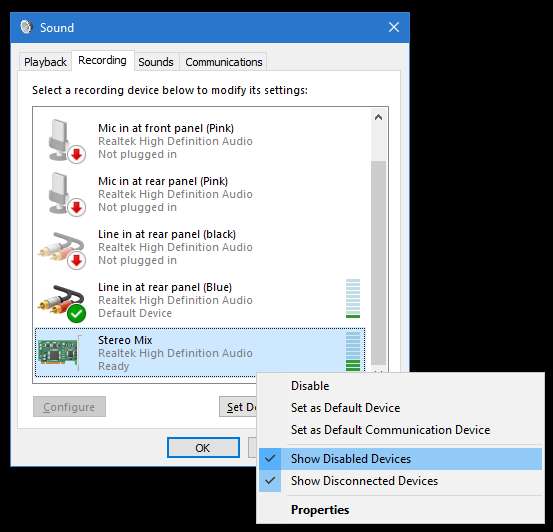
3. Right click over any source and check the ‘Show disabled devices’ option.
5. Now that the hidden options are visible, right click on each of them and click on enable.
6. Right click on the What U Hear or Stereo Mix source and click on ‘Set as default device’.
7. Once the device is set as default you will be able to use the "What U Hear"/"Stereo Mix" option in your recording or metering applications to record or monitor the audio you are currently hearing over your speakers or headset.

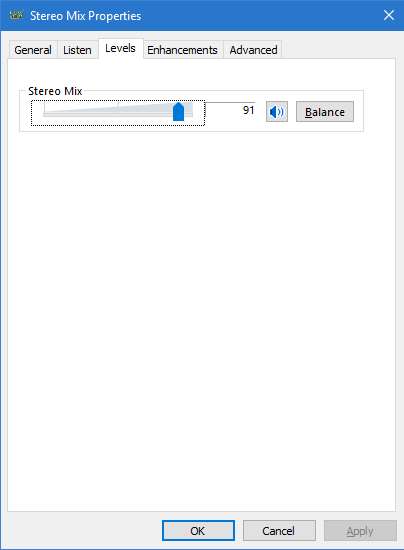
You will need to calibrate the meter to read playback accurately.
Double-
As an aid to calibration here are two Calibration Tone Wave Files (zipped) you can download.
These are both 400Hz tones, one recorded at a level of 4dB below Full Scale Digital (-
Playback the tone file and set up the meter so it reads wherever you want it on the scale.
© Paul Marshall 2016 /2020
This applies to Windws 7/8 and 10 but changes to 10 have made the controls harder to find.
In Windows 10 open Settings:
Click on ‘Sound’
On the right hand side click on ‘Sound Control Panel’

Alternatively, find the speaker icon on the task bar, bottom right. (It might be in the 'extras' section, click the ^ icon.)
Right-
Click ‘Open Sound Settings’.
Click ‘Sound Control Panel’ as above.
On Windows 10 this takes you to Settings as above.
On older Windows you go straight to the original Sound Control Panel as below.

